> ## Documentation Index
> Fetch the complete documentation index at: https://help.mytruv.com/llms.txt
> Use this file to discover all available pages before exploring further.

# ChatGPT

> Connect MyTruv MCP to ChatGPT as a custom connector.

ChatGPT supports custom MCP connectors on paid plans. Sign-in is handled through MyTruv's OAuth flow.

<Warning>
  MyTruv MCP is only available on the Pro plan. [Upgrade to Pro](/billing/subscription-plans) to get started.
</Warning>

<Info>
  Custom MCP connectors in ChatGPT require a paid ChatGPT subscription (Plus, Pro, Business, Enterprise, or Edu).
</Info>

***

## Server URL

```
https://api.mytruv.com/mcp
```

***

## Steps

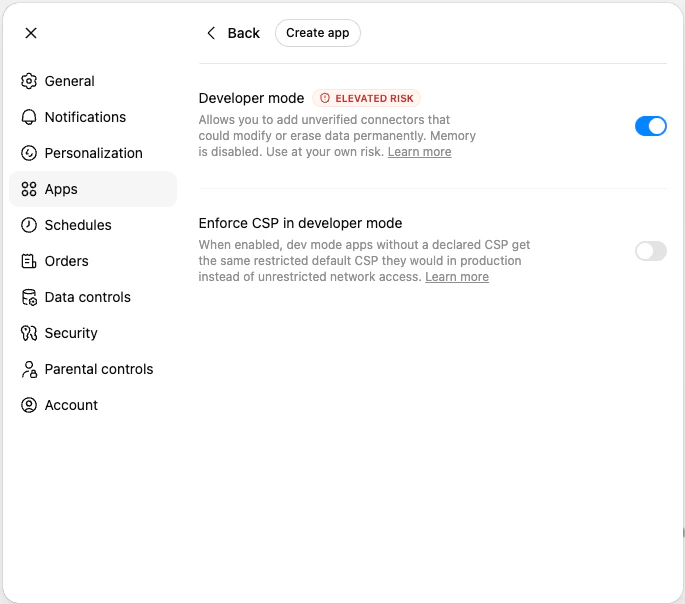
1. Open ChatGPT and go to Settings > Apps > Advanced settings, then toggle Developer mode ON. ChatGPT will warn that this is an "elevated risk" setting; that is expected for any third-party MCP app.

<Frame>
  <img src="https://mintcdn.com/mytruv-docs/2XJQJIAqGSpjl26O/images/product/mcp/chatgpt-developer-mode.png?fit=max&auto=format&n=2XJQJIAqGSpjl26O&q=85&s=f7284db85643a70e215dd0e9ddb42fa8" alt="ChatGPT Settings > Apps > Advanced settings with Developer mode toggled on" data-og-width="685" width="685" data-og-height="604" height="604" data-path="images/product/mcp/chatgpt-developer-mode.png" data-optimize="true" data-opv="3" srcset="https://mintcdn.com/mytruv-docs/2XJQJIAqGSpjl26O/images/product/mcp/chatgpt-developer-mode.png?w=280&fit=max&auto=format&n=2XJQJIAqGSpjl26O&q=85&s=08aff70aa99284322d2d47ad1ab69695 280w, https://mintcdn.com/mytruv-docs/2XJQJIAqGSpjl26O/images/product/mcp/chatgpt-developer-mode.png?w=560&fit=max&auto=format&n=2XJQJIAqGSpjl26O&q=85&s=4c9fab7f1a816b827c7f5db2540393ac 560w, https://mintcdn.com/mytruv-docs/2XJQJIAqGSpjl26O/images/product/mcp/chatgpt-developer-mode.png?w=840&fit=max&auto=format&n=2XJQJIAqGSpjl26O&q=85&s=8bfe8b086602e76200f5dd6045ee1049 840w, https://mintcdn.com/mytruv-docs/2XJQJIAqGSpjl26O/images/product/mcp/chatgpt-developer-mode.png?w=1100&fit=max&auto=format&n=2XJQJIAqGSpjl26O&q=85&s=f2c35a802bdc5f8cd8cd22a68122ce12 1100w, https://mintcdn.com/mytruv-docs/2XJQJIAqGSpjl26O/images/product/mcp/chatgpt-developer-mode.png?w=1650&fit=max&auto=format&n=2XJQJIAqGSpjl26O&q=85&s=ccf6d839667f2193e09cef334f42b756 1650w, https://mintcdn.com/mytruv-docs/2XJQJIAqGSpjl26O/images/product/mcp/chatgpt-developer-mode.png?w=2500&fit=max&auto=format&n=2XJQJIAqGSpjl26O&q=85&s=86002b41826ab93c676a930d50cce2d2 2500w" />
</Frame>

2. Go back to Settings > Apps and click Create app.
3. Enter the details:
   * Name: `MyTruv`
   * MCP Server URL: paste the server URL above
   * Authentication: OAuth
4. Check the box to trust the application, then click Create. ChatGPT will open MyTruv's sign-in page so you can authorize access.
5. Start a new chat, click the `+` icon, select More, and toggle on MyTruv to use it. While the app is active, the chat input shows a `DEVELOPER MODE` badge.

For the latest ChatGPT Apps UI and availability by plan, see OpenAI's [ChatGPT Connectors help article](https://help.openai.com/).

***

## Next steps

<div className="mytruv-card-grid">
  <a className="mytruv-card" href="/mytruv-mcp/prompts">
    <span className="mytruv-card__icon">
      <svg viewBox="0 0 24 24" fill="none" stroke="currentColor" strokeWidth="1.75" strokeLinecap="round" strokeLinejoin="round">
        <path d="M12 3l1.5 5L18 9l-4.5 1L12 15l-1.5-5L6 9l4.5-1z" />

        <path d="M19 12l.7 2.3L22 15l-2.3.7L19 18l-.7-2.3L16 15l2.3-.7z" />

        <path d="M5 16l.5 1.5L7 18l-1.5.5L5 20l-.5-1.5L3 18l1.5-.5z" />
      </svg>
    </span>

    <h3 className="mytruv-card__title">Try these prompts</h3>
    <p className="mytruv-card__body">Ready-to-use prompts for your first chats with MyTruv.</p>

    <span className="mytruv-card__arrow">
      <svg width="16" height="16" viewBox="0 0 24 24" fill="none" stroke="currentColor" strokeWidth="2" strokeLinecap="round" strokeLinejoin="round">
        <path d="M7 17L17 7" />

        <path d="M8 7h9v9" />
      </svg>
    </span>
  </a>

  <a className="mytruv-card" href="/mytruv-mcp/tools">
    <span className="mytruv-card__icon">
      <svg viewBox="0 0 24 24" fill="none" stroke="currentColor" strokeWidth="1.75" strokeLinecap="round" strokeLinejoin="round">
        <path d="M14.7 6.3a1 1 0 000 1.4l1.6 1.6a1 1 0 001.4 0l3.77-3.77a6 6 0 01-7.94 7.94l-6.91 6.91a2.12 2.12 0 01-3-3l6.91-6.91a6 6 0 017.94-7.94l-3.76 3.76z" />
      </svg>
    </span>

    <h3 className="mytruv-card__title">Available tools</h3>
    <p className="mytruv-card__body">What ChatGPT can query on your behalf.</p>

    <span className="mytruv-card__arrow">
      <svg width="16" height="16" viewBox="0 0 24 24" fill="none" stroke="currentColor" strokeWidth="2" strokeLinecap="round" strokeLinejoin="round">
        <path d="M7 17L17 7" />

        <path d="M8 7h9v9" />
      </svg>
    </span>
  </a>
</div>
