

Custom MCP connectors in ChatGPT require a paid ChatGPT subscription (Plus, Pro, Business, Enterprise, or Edu).
Server URL
Steps
- Open ChatGPT and go to Settings > Apps > Advanced settings, then toggle Developer mode ON. ChatGPT will warn that this is an “elevated risk” setting; that is expected for any third-party MCP app.
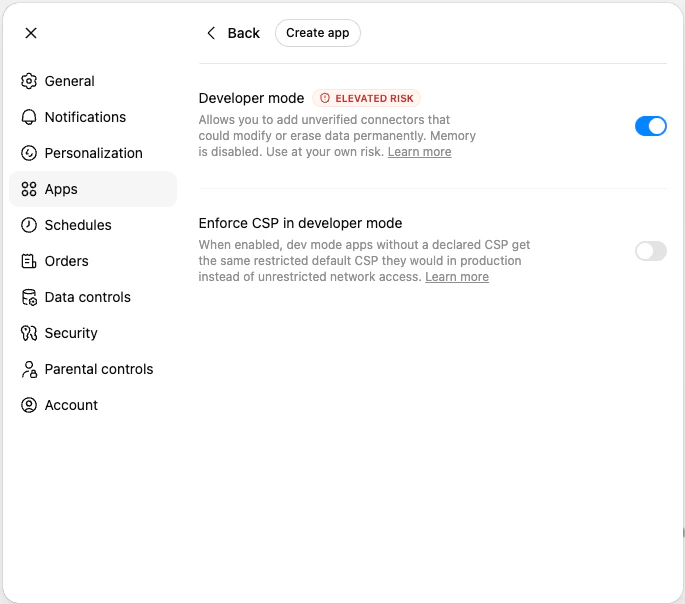
- Go back to Settings > Apps and click Create app.
- Enter the details:
- Name:
MyTruv - MCP Server URL: paste the server URL above
- Authentication: OAuth
- Name:
- Check the box to trust the application, then click Create. ChatGPT will open MyTruv’s sign-in page so you can authorize access.
- Start a new chat, click the
+icon, select More, and toggle on MyTruv to use it. While the app is active, the chat input shows aDEVELOPER MODEbadge.