
Documentation Index

Fetch the complete documentation index at: https://help.mytruv.com/llms.txt

Use this file to discover all available pages before exploring further.

Claude Desktop and Claude.ai connect to MyTruv MCP through Connectors. One-time setup - OAuth handles the sign-in.
MyTruv MCP is only available on the Pro plan. Upgrade to Pro to get started.

Server URL

https://api.mytruv.com/mcp

Steps

  1. Open Claude Desktop or Claude.ai and go to Settings > Connectors.
  2. Click Add custom connector at the bottom of the list.
  3. Set Name to MyTruv and paste the server URL above into Remote MCP server URL.
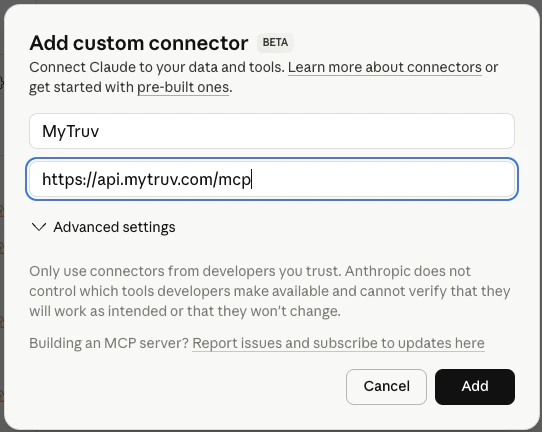
Claude's Add custom connector dialog with Name set to MyTruv and the MCP server URL filled in
  1. Click Add. A browser window opens so you can sign in with your MyTruv account and authorize access.
  2. Once authorized, start a new chat and ask Claude to check your balances or pull recent transactions.

Next steps

Try these prompts

Ready-to-use prompts for your first chats with MyTruv.

Available tools

What Claude can query on your behalf.